Long video to shorts: turn a webinar or podcast into clips
A one hour webinar or video podcast holds a dozen good moments. Almost nobody watches the full recording later, but a 45 second clip of the best answer can travel far. The hard part is finding those moments and cutting them. This guide shows how to go from long video to shorts on your Mac, with your own Claude doing the searching.
Why repurpose long recordings at all?
You already did the work: you prepared, you explained, you answered questions. Turning that into short clips gives the same content a second life on Reels, YouTube Shorts, TikTok and LinkedIn, and it reaches people who would never sit through an hour. The usual problem: watching the whole recording again, noting timestamps, cutting each clip, reframing it, adding subtitles. That is a day of work for one webinar.
What makes a good short from a long video
- It stands on its own. No “as I said earlier”, no reference to a slide nobody can see.
- It starts with a hook. A surprising claim, a strong question, a clear number. Not “so, um, next point”.
- It makes one point and ends when the point is made, on a sentence boundary.
- It is short. Usually 30 to 90 seconds.
- It works without sound, thanks to subtitles.
How BangerClip finds the best moments
BangerClip is a Mac app that builds finished clips. With Pro, its Best moments feature works through long recordings for you:
- Local transcript. BangerClip transcribes the whole recording on your Mac, with timestamps. The video is read, not copied or uploaded.
- Your Claude picks the moments. Only the transcript text goes to your own Claude. It looks for parts that work on their own and returns suggestions, usually 3 to 5, each with a hook sentence, its length and a short reason why it works. Start and end sit on sentence boundaries.
- You decide. You see the list, tick the moments you like and leave the rest. The suggestions stay saved, so you can come back and build more later.
- Each moment becomes a clip. Every ticked moment is built as its own talking head clip: pauses cut, face in frame, subtitles and graphics on top, in your look and colors.
Step by step: from webinar to shorts
- Export the recording as a video file. MP4, MOV or M4V, between 45 seconds and 90 minutes long. Most webinar and recording tools let you download an MP4.
- Drop it into the BangerClip Studio. The sheet “What should it become?” opens. With Pro, Best moments is preselected for videos longer than five minutes.
- Pick a preset. “Reel 30 s, hook first” for Reels and Shorts, “LinkedIn 60 s, 1:1” for the LinkedIn feed, or your own preset with length, formats, look, subtitle style and layout.
- Start the search. BangerClip transcribes locally, then your Claude suggests the moments.
- Tick and build. Choose the moments you want. BangerClip builds them one after another, all of them land in your library.
- Check and post. Watch each clip once, fix a subtitle if needed, then share. Caption and hashtags are written for every clip.
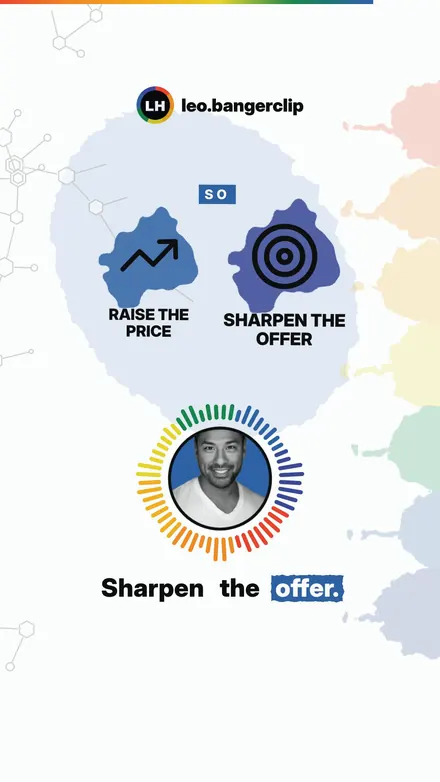
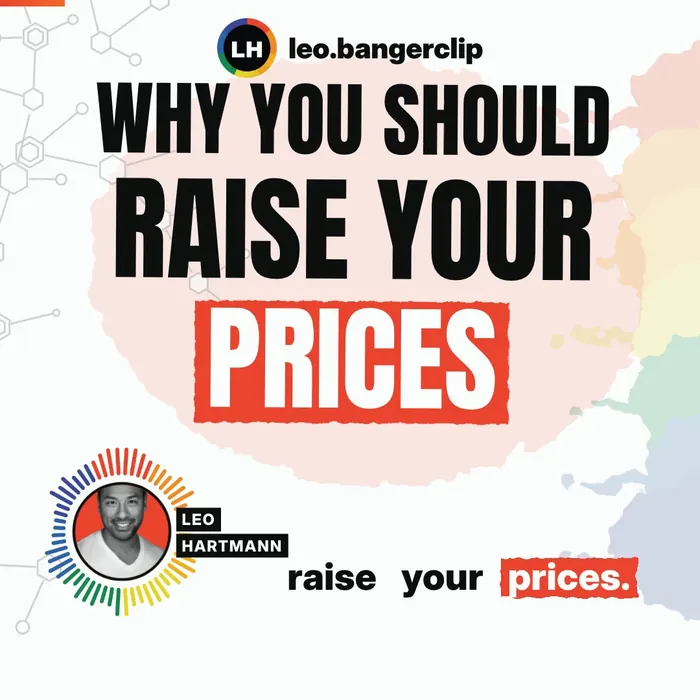
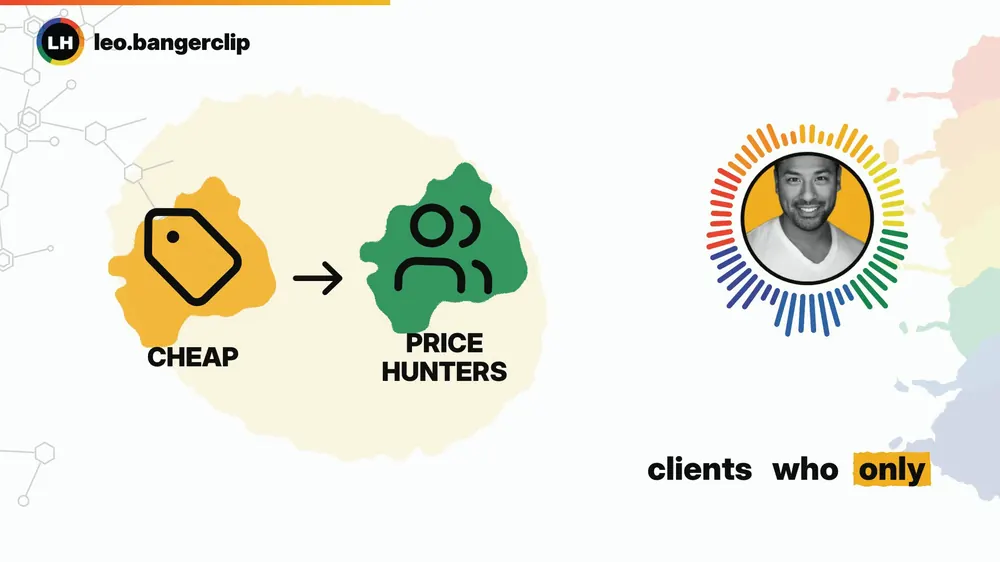
One clip, three formats: 9:16, 1:1 and 16:9. Example images from a voice clip.
Try it with your next idea
Free: 3 clips a month, no credit card. For Macs with Apple silicon and macOS 14 or later.
Webinar, podcast, talk: what works best
Best moments is made for recordings in which one person talks into the camera most of the time: a solo webinar, a video podcast with you on screen, a recorded talk. The face tracking keeps the speaker in the vertical frame. Recordings that are mostly screen sharing or a grid of many small faces give the crop less to work with, so check those clips more carefully.
If your recording is shorter than 15 minutes and you want it as one clip, talking head editing is the simpler route. And if you are comparing tools, read how BangerClip differs from OpusClip.
Why your own Claude?
BangerClip has no AI of its own and no AI subscription to sell you. Selecting moments needs a language model that understands what you said, so BangerClip uses your own Claude: your Claude plan via Claude Code, or your own Anthropic API key. The app shows you how to connect it step by step. Claude only ever sees the transcript text, never your audio or video.
Free or Pro?
Best moments is part of Pro, together with unlimited AI direction.
Free
- 3 clips per month
- 9:16 for Reels, TikTok and Shorts
- Watercolor look
- Rule-based direction, plus 2 AI test clips with your own Claude
- Short “Made with BangerClip” end card
Pro $9 a month or $79 a year
- Unlimited clips and unlimited AI direction with your own Claude
- From video: talking head and best moments
- 9:16, 1:1, 16:9 and its own X version, all four looks
- Your own asset box with your photos, videos and logos
- No end card
Honest limits
- Best moments needs a video file. Audio-only podcast episodes can't be split into moments yet.
- Recordings from 45 seconds up to 90 minutes.
- It needs Pro and your own connected Claude.
- Video clips don't have a separate X version yet.
- Transcribing a long recording takes a while on your Mac. How long depends on your Mac and the length.
- English and German speech, Mac with Apple silicon and macOS 14 or later.
FAQ
How long can my webinar or podcast be?
Best moments works with video recordings from 45 seconds up to 90 minutes. Shorter videos can go through Talking head as a single clip.
How many clips do I get from one recording?
Your Claude usually suggests 3 to 5 moments. You decide which ones to build, and the suggestions stay saved for later.
Is my recording uploaded to find the moments?
No. Transcription and rendering happen on your Mac. Only the transcript text goes to your own Claude, which suggests the moments.
Can I use an audio-only podcast?
Not for Best moments, which needs a video file. Audio files are treated like a voice recording, and that route is made for short recordings of about a minute.